
FastVid AI: Photo to Video
Ankit20Lifestyle
3.411.00 Reviews
- Version
- 1.0.2
- Installs
- 100.00K
- Age Rating
- Mature 17+
Screenshots
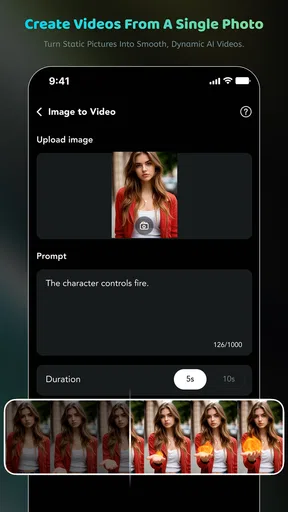
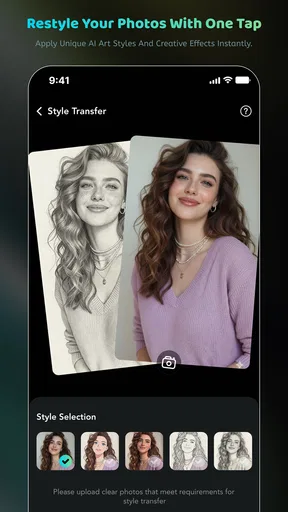
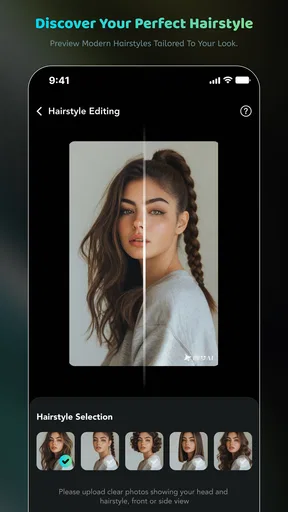
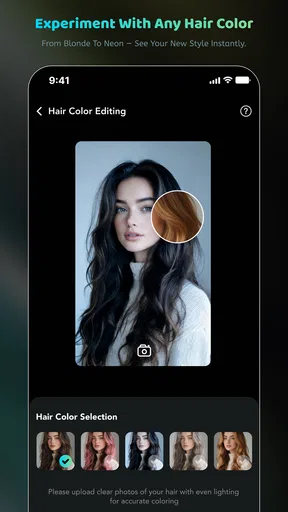
Our Review of FastVid AI: Photo to Video
 Analysis by Appyee
I approached FastVid AI: Photo to Video as a lifestyle tool for turning ordinary images into more expressive visual posts. Its focus is clear: combine AI video creation, photo editing, magic effects, and templates in one mobile workflow. After spending time with it, I see the appeal for people who want quick results without learning a full desktop editor, although the experience is not equally comfortable for every user or every kind of project.
The app is developed by Ankit20 and is available free of charge, with optional purchases ranging from $1.99 to $99.99 per item. It is rated for mature users aged 17 and over, runs on Android 7.0 or later, and the current release is version 1.0.2. Those details matter because this is not simply a basic slideshow maker aimed at children; it is positioned as a more expressive creative utility, and the age rating should be taken seriously when deciding who in a household should use it.
How FastVid AI feels to read and navigate
I find the easiest way to judge FastVid AI’s navigation is to keep one small task in mind instead of browsing every creative option at once. That makes it clearer whether the app’s photo-to-video approach suits your habits, and whether its guided feel is more useful to you than the open-ended controls of a conventional editor.
A simple idea with several creative paths
The main strength of the interface concept is that it brings several related tasks together. Instead of switching between a photo editor, an effects app, and a separate video maker, I can think of FastVid AI as a compact creative workspace. That is useful when I have a clear goal, such as making a short birthday montage, preparing a social post from travel photos, or giving an old family image a more animated presentation.
At the same time, combining photo editing and AI video generation can make the first visit feel busier than a single-purpose editor. A person who only wants to crop or improve one picture may find the broader collection of templates and effects unnecessary. I recommend beginning with one simple image and one visual treatment rather than exploring every option at once. This makes it easier to understand what each control changes and prevents the final result from becoming visually crowded.
The wording of an editing tool matters a lot for readability. Clear labels are more helpful than icons alone, especially when effects, templates, and generation controls sit close together. I found that the most comfortable way to use the app was to follow a deliberate sequence: choose the source photo, decide whether the goal is enhancement or motion, preview the result, and only then add decorative effects. That order reduces backtracking and makes the process easier to explain to someone who is new to mobile editing.
Why templates help, and where they can confuse
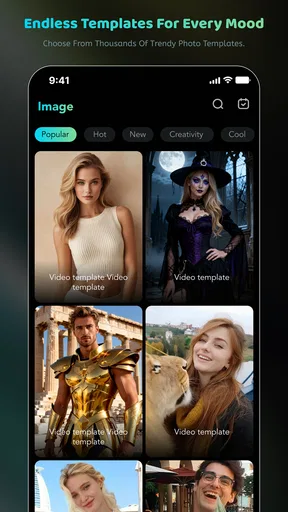
Templates are valuable when I want a finished-looking result quickly. They provide a starting structure for users who do not know how to pace images or combine visual elements. This is especially helpful for a casual creator who has a few photos but no interest in learning timelines, keyframes, or complex compositing.
The trade-off is that a template can encourage a one-size-fits-all result. A portrait, a product image, and a landscape photograph do not necessarily benefit from the same movement or framing. I get better results when I treat templates as rough layouts rather than automatic answers. I first choose the strongest image, check whether its subject is near the center, and then select a style that will not hide important details with excessive motion or decoration.
For readers who rely on larger text or stronger visual separation, the practical question is not only whether an option exists, but whether it remains easy to identify while an image is being edited. I would use the phone's own display-size and contrast settings where available, keep the screen uncluttered, and avoid judging small details from a dim display. FastVid AI is most approachable when the user works slowly and previews each stage instead of making several changes in one pass.
Useful habits for a more predictable workflow
One non-obvious lesson with an AI-assisted editor is that the source image often matters more than the effect. A sharply framed photo with a clear subject gives the app a better foundation than a dark, crowded image. I would prepare a small selection first, choosing images with enough space around the subject. That makes motion and decorative treatment less likely to cover faces, text, or the main object.
I also recommend creating a neutral version before adding a dramatic effect. This gives me a reference point and makes it easier to tell whether an effect has genuinely improved the image or merely made it busier. For accessibility, this comparison is useful because strong animation, flashes, or dense overlays can make an otherwise readable composition harder to inspect.
Another practical habit is to preview with the sound environment and viewing context in mind. A result that looks attractive on a bright phone screen may be difficult to understand when viewed quickly, at a distance, or in a busy room. I prefer restrained movement for announcements and family updates, reserving more intense visual treatment for content where decoration is the main purpose.
Motor and sensory considerations during editing
FastVid AI is designed for touch interaction, so comfort depends heavily on the user's ability to tap, swipe, and make repeated selections. Someone with limited fine-motor control may find a sequence of small controls tiring, particularly when trying to make precise changes on a compact phone. In that situation, I would use a larger display when possible, hold the device securely, and make one adjustment at a time rather than attempting rapid gestures.
The app's creative purpose also raises sensory considerations. Magic effects and animated video treatments can be visually intense. Even when they look impressive, fast transitions or high-contrast decoration may not suit people sensitive to motion, flashing imagery, or visual clutter. My advice is to preview effects briefly and choose calmer treatments when the video is intended for a broad audience. A clean image with gentle movement is often more inclusive than a technically elaborate result.
People with hearing-related needs should also consider what information is carried visually. A photo-to-video creation can be useful when the important message is shown through images, captions, or clear composition, but I would not assume that every template communicates equally well without audio. If the content matters, I would make the central idea understandable from the visuals alone rather than relying on sound to explain it.
For users with low vision, the editing decision is more important than the final decorative polish. I would select high-contrast source images, avoid placing text over busy backgrounds, and inspect faces and important objects at a comfortable zoom before finishing. If a template makes the subject difficult to distinguish, choosing a simpler layout is the better accessibility decision, even if the more elaborate option initially looks more exciting.
Using it in real-life situations
Imagine I have taken several photos during a family gathering and want to share a short visual memory that evening. I can choose the clearest images, apply a restrained template, and use a magic effect only where it supports the mood. The benefit is speed: I do not need to learn a full video editor just to turn still images into something more engaging. For a relative who finds complicated editing software intimidating, this kind of guided workflow may feel much more approachable.
There is also a useful scenario for small personal projects. I might photograph a handmade item, a room rearrangement, or a favorite recipe and create a short visual sequence that shows the details in order. In this case, I would avoid effects that change the appearance of the subject too much. The app is more helpful when it adds movement and presentation without making the original object misleading.
For social sharing, the template approach can save time, but I would still review the result for readability before posting. Check whether a face is covered, whether the main object remains visible throughout, and whether any text can be read without pausing. These checks take little time and are more important than adding one more visual effect.
The app may also suit users who communicate through visual storytelling rather than long written explanations. A sequence of edited photos can make a personal update easier to follow, particularly when each image has a clear role. However, the creator still needs to make choices about pacing and contrast; AI assistance does not remove the need for human judgement about what another person can comfortably see and understand.
Where it compares well with ordinary alternatives
Compared with a traditional photo editor, FastVid AI is more appealing when the desired outcome includes movement, atmosphere, or a ready-made presentation. A standard editor may offer more control over individual adjustments, but it usually does not make the transition from still image to short video feel as direct. For a quick personal post, I would choose FastVid AI over a tool that requires building a timeline from scratch.
Compared with a conventional slideshow maker, its AI-focused approach and magic effects offer more room for visual experimentation. The advantage is immediacy; the limitation is predictability. A manual slideshow tool can be better when I need exact timing, consistent transitions, or careful control over every frame. If the project is for work, education, or a client, I would want to inspect the output closely rather than assuming the automatic treatment is suitable.
Compared with a professional mobile editor, FastVid AI is easier to approach but less appropriate for detailed production work. It makes sense for spontaneous content, personal memories, and quick creative experiments. It is not the first tool I would choose for a long-form project, precise brand guidelines, advanced audio work, or a video that must follow a strict visual specification.
Remaining barriers and practical limitations
The free entry point is helpful, but optional purchases between $1.99 and $99.99 per item create an important decision point. I would explore the basic workflow first and avoid assuming that every appealing effect or template belongs to the no-cost experience. Before committing to a paid item, I would ask whether it improves the message or merely adds decoration. This is particularly important for occasional users who may not benefit from building a large collection of premium assets.
The mature rating is another barrier for families. Parents should not treat the app as automatically suitable for younger children simply because it is a creative editor. The rating means the intended audience is older, and supervision or a separate family decision may be appropriate before anyone under that age uses it.
AI-generated results can also be inconsistent in ways that affect accessibility. A face may become less natural, a small object may lose its shape, or an effect may introduce movement that distracts from the subject. I would never use an automatically generated result without checking it, especially when the image contains a person, an important document, a product detail, or information that needs to remain accurate.
Another limitation is the gap between visual ease and physical ease. A clean-looking result does not guarantee that every user can comfortably reach the controls needed to create it. People with tremors, limited reach, or fatigue may need a slower workflow and a larger device. If repeated touch actions are difficult, a more keyboard-oriented or desktop-based editor may be a better choice, even if it takes longer to learn.
Situational access matters too. On a small phone in bright sunlight, subtle effects and fine controls can be hard to judge. In a noisy environment, a user may focus only on the visuals and miss information that depends on audio. When sharing content with people who have different needs, I would design the result to work silently, keep the subject prominent, and avoid unnecessary visual intensity.
Who should use it, and who should choose something else
I would recommend FastVid AI to casual creators who want to turn photos into short, more expressive visual pieces without studying professional editing software. It is a good fit for personal memories, informal announcements, social posts, and experiments where speed matters more than frame-by-frame control. It can also help someone who has ideas for visual content but feels blocked by a blank editing timeline.
I would be more cautious about recommending it to users who need strict accessibility control, precise timing, predictable output, or detailed manual adjustment. A dedicated photo editor may be better for careful retouching, while a full video editor may be the stronger option for captions, audio structure, exact transitions, and production consistency. For children, the mature rating is a clear reason to look for a more age-appropriate alternative.
The app has reached over one hundred thousand installs and holds an average rating of 3.4 from 127 ratings, with 11 written reviews. I read that overall response as moderate rather than universally enthusiastic. It suggests that the concept has an audience, but I would still test the workflow with a few nonessential images before relying on it for an important project.
My inclusive verdict
FastVid AI: Photo to Video is most successful when I use it as a quick visual storytelling tool rather than a replacement for every kind of editor. Its combination of AI video creation, photo editing, effects, and templates can shorten the distance between an idea and a shareable result. The strongest experience comes from choosing a clear source image, applying effects selectively, and checking the finished piece from the perspective of someone who may have different visual, hearing, or motor needs.
I like that the app can make animated photo content feel less intimidating, especially for people who do not want a complicated timeline. I also appreciate that a restrained workflow can produce something personal without requiring advanced editing knowledge. Still, the mature age rating, optional purchases, possible visual intensity, and limited control compared with professional tools mean it is not a universal recommendation.
My practical recommendation is to start small, preview carefully, and prioritize clarity over spectacle. If your goal is a fast, creative photo-based video for everyday sharing, this free lifestyle app is worth trying. If your project demands exact control or your audience has strong accessibility requirements, use it only as an idea generator and move the work to a tool with more deliberate controls.
Verdict
Strengths of FastVid AI: Photo to Video
- Turns still photos into engaging videos with minimal editing effort.
- AI effects can add motion and visual interest to ordinary images.
- Useful for creating social media posts, stories, and short promotional clips.
- Simple workflow makes it accessible to users without editing experience.
- Quick export options help produce shareable content on the go.
Limitations of FastVid AI: Photo to Video
- AI results may vary depending on photo quality and subject composition.
- Some advanced effects or exports may require a paid subscription.
- Generated videos can look repetitive if using the same templates often.
- Processing may take longer on older phones or with multiple images.
- Exported content may include branding or have limited customization options.
Similar Picks in This Category
View All
SmartThings
Samsung Electronics Co., Ltd.4.6

Google Home
Google LLC4.0

Pinterest4.2

Astrotalk - Talk to Astrologer
Astrology & Horoscope4.7

My Verizon
Verizon Consumer Group4.5

Samsung Wallet (Samsung Pay)
Samsung Electronics Co., Ltd.4.1
Frequently Asked Questions
What is FastVid AI: Photo to Video, and what can it do?
FastVid AI: Photo to Video is a mobile app designed to transform still images into short animated videos using artificial intelligence. After selecting a photo, users can typically apply motion effects, transitions, zooms, and other visual enhancements to create content suitable for social media, messages, or personal projects. The exact results may vary depending on the image quality and the selected effect.
How do I create a video with FastVid AI: Photo to Video?
To create a video, you generally begin by importing one or more photos from your device or choosing images through the app’s media picker. You can then select an animation style, adjust available settings, preview the result, and export the finished clip. Processing time may depend on the complexity of the effect, the number of images, your device, and whether cloud-based AI processing is required.
Is FastVid AI: Photo to Video free to use?
The app may be available to download for free, but some features can be restricted by subscriptions, in-app purchases, credits, advertisements, or export limitations. Premium tools may include advanced AI effects, higher-quality rendering, additional templates, faster processing, or watermark removal. Before creating multiple videos, check the current pricing page and trial terms because availability and costs can change.
Does FastVid AI: Photo to Video require an internet connection?
An internet connection may be necessary for AI-powered animation, account services, advertisements, template downloads, or video processing performed on remote servers. Basic editing or access to already downloaded content might work offline, but this depends on the version of the app and the specific feature being used. For the smoothest experience, a stable Wi-Fi or mobile data connection is recommended.
Is my personal photo data safe when using FastVid AI: Photo to Video?
Before uploading personal, family, or sensitive images, review the app’s privacy policy and permissions carefully. AI photo-to-video tools may process images locally or send them to external servers to generate animations, and retention periods can differ. Avoid uploading confidential material unless you understand how it is handled, whether it is used for service improvement, and how you can request deletion.
